
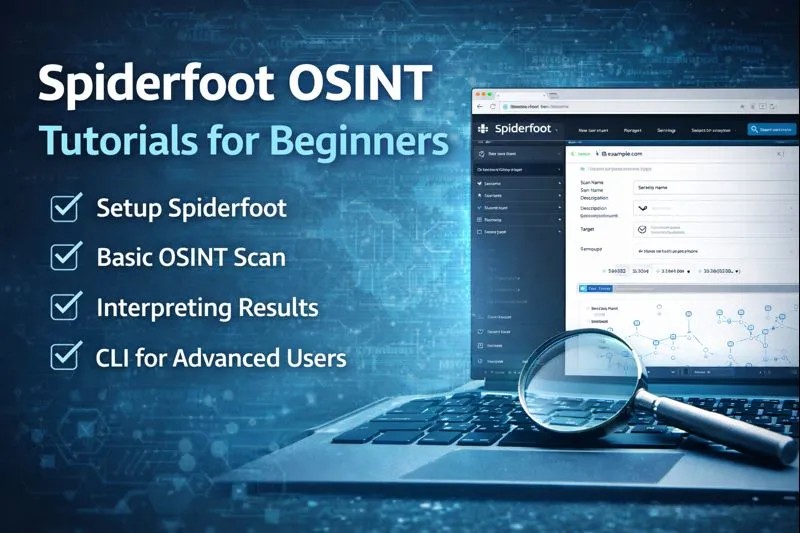
Quick answer: To use SpiderFoot as a beginner, install it, open the web interface at http://127.0.0.1:5001, click New Scan, enter a target you own (such as your domain), choose the Passive use case, and click Run Scan Now. Then review results in the Summary, Browse, Correlations and Graph tabs and export them as CSV or JSON.
SpiderFoot is one of the best free tools for learning OSINT (open-source intelligence). It automates hundreds of manual lookups, such as DNS, WHOIS, breach checks, search engines and threat feeds, and turns them into one organised report. This tutorial takes you from zero to your first useful investigation, even if you have never used an OSINT tool before.
What You Will Learn
- What SpiderFoot does and how it works
- How to install it in a few minutes
- How to run your first scan step by step
- How to read and export results
- Which API keys to add first
- Three beginner practice projects
- Mistakes to avoid and how to stay legal
What Is SpiderFoot? (In Simple Words)
Think of SpiderFoot as a research assistant. You give it one piece of information, a “seed”, like example.com. It asks 200+ sources what they know about it. Every new piece of data it finds (a subdomain, an email, an IP address) becomes a new seed, and SpiderFoot searches again. That is why it is called a spider: it keeps crawling outward from your starting point.
It was built by Steve Micallef, is free and open source (MIT licence), and runs on Windows, macOS, Linux and even Android. You can also host it on a server and use SpiderFoot online from any browser. Want the full background? Read what SpiderFoot is and how it supports OSINT automation.
Step 1: Install SpiderFoot
Pick the guide for your device:
- Windows, macOS, Linux or Docker: SpiderFoot install guide
- Kali Linux: install SpiderFoot on Kali (one command)
- Android: install SpiderFoot on Termux
The short version for Linux or macOS:
git clone https://github.com/smicallef/spiderfoot.git
cd spiderfoot
python3 -m venv venv
source venv/bin/activate
pip install -r requirements.txt
python3 sf.py -l 127.0.0.1:5001
Now open http://127.0.0.1:5001 in your browser.
Step 2: Get to Know the Web Interface
| Tab | What it does |
|---|---|
| New Scan | Start a scan: name, target and which modules to run |
| Scans | List of all scans with status, element count and actions (view, rerun, delete) |
| Settings | Global options, API keys and per-module settings |
SpiderFoot also has a command-line mode. Beginners usually start with the web UI; see the differences between the web interface and command-line mode when you are ready.
Step 3: Run Your First Scan
- Click New Scan.
- Scan Name: something clear, like my-domain-passive-01.
- Scan Target: enter a domain you own, your own email address or your own username. SpiderFoot detects the target type automatically.
- Choose how to pick modules:
- By Use Case (best for beginners)
- By Required Data (for example, only email addresses)
- By Module (hand-pick specific modules)
- Select Passive and click Run Scan Now.
The four scan use cases explained
| Use case | What it does | When to use it |
|---|---|---|
| Passive | Only queries third-party sources; never contacts the target | First scans, stealthy research, learning |
| Footprint | Maps the target’s network perimeter, identities and assets | Understanding an organisation’s attack surface |
| Investigate | Checks for malicious or suspicious indicators | Checking a suspicious domain or IP |
| All | Runs every module (can be slow and noisy) | Deep dives on authorised targets with time to spare |
Step 4: Read the Results
While the scan runs, results appear live. Here is how to make sense of them:
- Summary: a count of every data type found (IP addresses, subdomains, emails, and so on). Click a type to drill in.
- Browse: the raw data, with the module that found each item and the item it came from.
- Correlations: SpiderFoot’s rule engine flags notable findings by risk level (high, medium, low, info). Start here — it shows what matters most.
- Graph: a visual map of how data points connect.
- Log: what each module did, including errors. Useful when something returns nothing.
Beginner tip: Not every result is a problem. A public MX record is normal. A leaked password or an exposed admin panel is not. Focus on items flagged in Correlations and on anything that looks private.
Step 5: Export and Report
From the scan page, use the export option to download results as CSV (for Excel or Google Sheets), JSON (for scripts and other tools) or GEXF (for graph tools like Gephi). A simple beginner report has three parts: what you scanned, the key findings, and recommended fixes.
Step 6: Add Free API Keys
SpiderFoot works without keys, but keys unlock much richer data. Go to Settings, pick the module, paste the key and click Save Changes. Good first keys:
- VirusTotal – domain and IP reputation
- Shodan – internet-exposed services
- SecurityTrails – DNS history and subdomains
- Hunter.io – emails linked to a domain
- AbuseIPDB – IP abuse reports
See every source in our guide to SpiderFoot modules and data sources.
3 Beginner Practice Projects
Project 1: Check your own digital footprint
Scan your personal email and main username with the Passive profile. Look for data breaches, old accounts and public profiles you forgot about. Then change reused passwords and close unused accounts.
Project 2: Map your website’s attack surface
Scan your own domain with Footprint. List every subdomain, IP and open service SpiderFoot finds. Anything you do not recognise may be a forgotten server that needs updating or shutting down.
Project 3: Investigate a suspicious link
Got a phishing email? Scan the sender’s domain with Investigate. Check domain age, blacklists and malware reports. This is exactly how security analysts triage threats.
Learn what else you can scan in our guide to SpiderFoot target types.
7 Beginner Mistakes to Avoid
- Running “All” first. It is slow and noisy. Start with Passive.
- Scanning targets without permission. Only scan what you own or are authorised to test.
- Ignoring Correlations. It is the fastest way to find what matters.
- Skipping API keys. Many modules return nothing without them.
- Trusting every result. Verify important findings manually before reporting them.
- Exposing the UI to the internet. Keep it on 127.0.0.1 or protect it.
- Never cleaning up. Delete old scans that contain personal data you no longer need.
Hit an error? Our SpiderFoot troubleshooting guide has fixes for the common ones.
What to Learn Next
- Automate scans from the terminal with our SpiderFoot commands tutorial.
- Build repeatable recon workflows in our SpiderFoot OSINT automation guide.
- See how OSINT fits into security testing in our penetration testing methodology guide.
- Worried it is too technical? Read does SpiderFoot require advanced technical skills.
Frequently Asked Questions
Is SpiderFoot good for beginners?
Yes. The web interface, use-case scan profiles and automatic correlations make it one of the most beginner-friendly OSINT tools. You only need basic command-line skills to install it.
What should my first SpiderFoot scan be?
Run a Passive scan on a domain, email address or username you own. Passive scans do not contact the target directly, finish quickly and show you how SpiderFoot presents results.
Do I need API keys to use SpiderFoot?
No, many modules work without keys. However, free API keys from services like VirusTotal, Shodan and SecurityTrails add much more data to your scans.
How long does a SpiderFoot scan take?
A Passive scan on a small domain usually takes a few minutes to half an hour. Footprint and All scans on large targets can take hours.
Can SpiderFoot find personal information about people?
It can find publicly available data linked to an email, username, phone number or name, such as breach records and social profiles. Use this only for yourself or with a legitimate, lawful reason.
What is the difference between Passive and Footprint scans?
Passive only queries third-party sources and never touches the target. Footprint goes further to map the target’s network perimeter and may contact the target’s systems directly.
Conclusion
SpiderFoot is one of the easiest ways to learn OSINT because it does the repetitive lookups for you and shows how every finding connects. Install it, run a Passive scan on something you own, read the Correlations tab first, and add a few free API keys. After three or four practice scans, you will understand your own digital footprint better than most people ever do.
Pingback: SpiderFoot Targets: All 11 Types You Can Scan (2026 Guide)