
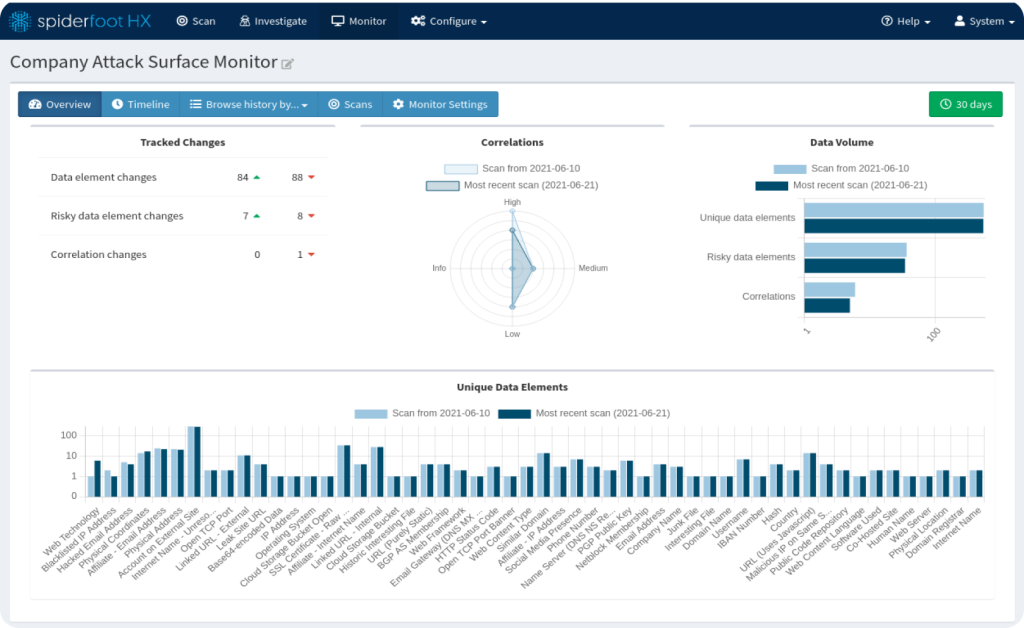
Quick answer: SpiderFoot’s web interface is a browser dashboard for starting scans, exploring results, viewing correlations and graphs, and managing API keys. Its command-line mode (sf.py -s) runs scans in the terminal and prints results as tab, CSV or JSON, which makes it ideal for scripting, automation and headless servers. Both use the same modules; the difference is how you control scans and view results. Most people use the web UI to explore and the CLI to automate.
SpiderFoot actually gives you three ways to work: the web interface, one-off command-line scans with sf.py, and an interactive CLI client (sfcli.py) that controls a running server. This guide compares them side by side so you can choose the right one for each job.
Web UI vs CLI: Side-by-Side Comparison
| Feature | Web interface | Command line (sf.py -s) | Interactive CLI (sfcli.py) |
|---|---|---|---|
| How you start it | sf.py -l 127.0.0.1:5001 | sf.py -s target ... | sfcli.py -s http://127.0.0.1:5001 |
| Learning curve | Easiest | Moderate | Moderate |
| Module selection | Checkboxes, use cases, required data | Flags -u, -m, -t | Options on the start command |
| Live results | Yes, updates as scan runs | Streams to terminal | Query while scanning |
| Correlations view | Yes, with risk levels | Run with -C scanID | Yes (correlations command) |
| Graph visualisation | Yes | No (export GEXF instead) | No |
| Scan history | Stored and browsable | Output only, unless saved | Stored on the server |
| API key management | Settings page | Uses saved settings | Via set |
| Automation and scripting | Limited | Excellent | Good |
| Headless servers / SSH | Needs a tunnel or proxy | Perfect | Perfect |
| Output formats | CSV, JSON, GEXF export | tab, CSV, JSON to stdout | Export command |
The Web Interface
Start it with python3 sf.py -l 127.0.0.1:5001 (or spiderfoot -l 127.0.0.1:5001 on Kali) and open the address in a browser.
Strengths
- Beginner-friendly: pick “By Use Case”, “By Required Data” or “By Module” with a few clicks.
- Visual analysis: Summary, Browse, Correlations and an interactive Graph.
- Scan management: rerun, compare, stop and delete past scans.
- Easy settings: add API keys and tune modules in one place.
Limitations
- Harder to automate or schedule.
- No login by default, so it needs extra protection on shared or remote systems. See how to secure SpiderFoot.
Best for: learning, exploring results, reporting and investigations where you want to see connections.
Command-Line Mode (sf.py)
Run a scan directly without the browser:
python3 sf.py -s example.com -u passive -o csv -q > example.csvStrengths
- Scriptable: loop over targets, pipe results into other tools, schedule with cron.
- Fast and focused: use
-mfor specific modules or-tfor specific data types. - Clean output: CSV or JSON straight into a file, SIEM or spreadsheet.
- Low overhead: great on servers, containers and phones.
Limitations
- No graph or interactive browsing.
- You need to remember flags (our SpiderFoot commands cheat sheet helps).
Best for: automation, bulk scanning, CI pipelines and quick targeted lookups.
The Interactive CLI Client (sfcli.py)
sfcli.py is a shell that talks to a running SpiderFoot server through its web API. You get the scan history and correlations of the server, with the speed of a terminal.
python3 sfcli.py -s http://127.0.0.1:5001
sf> help
sf> scans
sf> start example.com -u passive
On Kali it is installed as spiderfoot-cli. Type help to see all commands, such as modules, types, summary, data, logs and export.
Best for: managing scans on a remote server over SSH, without exposing the web UI.
Which Should You Use? Decision Guide
| If you want to… | Use |
|---|---|
| Learn SpiderFoot for the first time | Web interface |
| See how findings connect visually | Web interface (Graph) |
| Scan 50 domains overnight | Command line + script |
| Run a weekly monitoring scan | Command line + cron / Task Scheduler |
| Control a remote server over SSH | sfcli.py |
| Feed results into a SIEM or script | Command line with -o json |
| Present findings to a client | Web interface + CSV export |
The Best Workflow: Use Both
- Run the SpiderFoot server with the web UI on localhost.
- Kick off routine or bulk scans from the CLI or sfcli.py.
- Open the web UI to review Correlations and the Graph for the interesting ones.
- Export CSV or JSON for your report or other tools.
This gives you automation and visual analysis. Learn how to build it in our SpiderFoot OSINT automation guide.
Getting Started
- Install first: SpiderFoot install guide or Kali Linux guide.
- Walk through the web UI in our SpiderFoot beginner tutorial.
- Worried about difficulty? Read does SpiderFoot require advanced technical skills.
Frequently Asked Questions
Do the SpiderFoot web UI and CLI use the same modules?
Yes. Both run the same 200+ modules and produce the same data types. Only the way you start scans and view results is different.
Can I see CLI scan results in the web interface?
Scans started with sf.py -s print results to the terminal. To keep scans in the web UI history, start them from the web interface or with sfcli.py connected to the running server.
Is the SpiderFoot CLI harder to use?
It takes a little practice to learn the flags, but a handful such as -s, -u, -m, -t and -o cover most needs.
What is the difference between sf.py and sfcli.py?
sf.py is SpiderFoot itself. It runs the web server with -l or a one-off scan with -s. sfcli.py is an interactive client that controls a running SpiderFoot server through its API.
Which mode is better for automation?
The command line. You can script scans, loop over targets and schedule them with cron or Task Scheduler, saving results as CSV or JSON.
Can I use the SpiderFoot web UI on a remote server?
Yes. Keep it bound to 127.0.0.1 and connect through an SSH tunnel, or put it behind an HTTPS reverse proxy with authentication.
Conclusion
The SpiderFoot web interface and command line use the same engine and modules. The web UI wins for learning, exploring and presenting results; the command line wins for speed, scripting and automation; and sfcli.py bridges the two on remote servers. Start with the web UI, then add CLI scans as your workflows grow.